
A thinkorswim price alert is a customizable notification system that triggers when a stock, option, or index reaches a specific price level or meets a defined technical condition. These alerts let you monitor the markets automatically without staring at a screen all day. We'll walk you through exactly how to set them up so you never miss a critical trade setup again.
You've probably experienced the frustration of stepping away from your desk for five minutes, only to return and see your target stock just made a massive breakout. Missing a planned entry or exit because you looked away is a terrible feeling. Our team sees traders struggle with screen fatigue constantly, and it often leads to forced trades or missed opportunities.
By the end of this guide, you'll know exactly how to configure basic price triggers, indicator-based study alerts, and custom ThinkScript notifications. We'll also cover how to route these alerts directly to your phone so you can manage your positions from anywhere.
What Types of Alerts Can You Create in Thinkorswim?
Bottom Line: Thinkorswim price alerts give traders a practical way to stay connected to the market without constant screen monitoring, but they work best as a signal layer on top of real orders, not a substitute for them. The platform's four alert types, from basic price triggers to custom ThinkScript conditions, cover nearly every monitoring need a retail trader has. The core lesson here is that automation reduces emotional trading, but only when alerts and orders are used together with a clear purpose for each.
You can create four main types of alerts in thinkorswim: basic price alerts, study alerts based on technical indicators, portfolio metric alerts for your account balances, and custom ThinkScript alerts. Each type serves a specific purpose, allowing you to monitor simple price action or complex multi-indicator setups automatically.
Our team relies heavily on these four categories to manage our daily watchlists. Here's exactly how they differ:
- Basic Price Alerts: These trigger when an asset hits a specific price. You can base them on the Bid, Ask, or Mark price.
- Study Alerts: These trigger based on technical indicators. For example, you can set an alert for when the RSI drops below 30 or when the MACD line crosses the signal line.
- Portfolio Alerts: These notify you about changes in your account. You can set alerts for when your buying power drops below a certain threshold or when your overall portfolio delta shifts.
- ThinkScript Alerts: These are highly customized alerts built using the platform's proprietary coding language. They allow you to combine multiple timeframes and complex conditions into a single trigger.
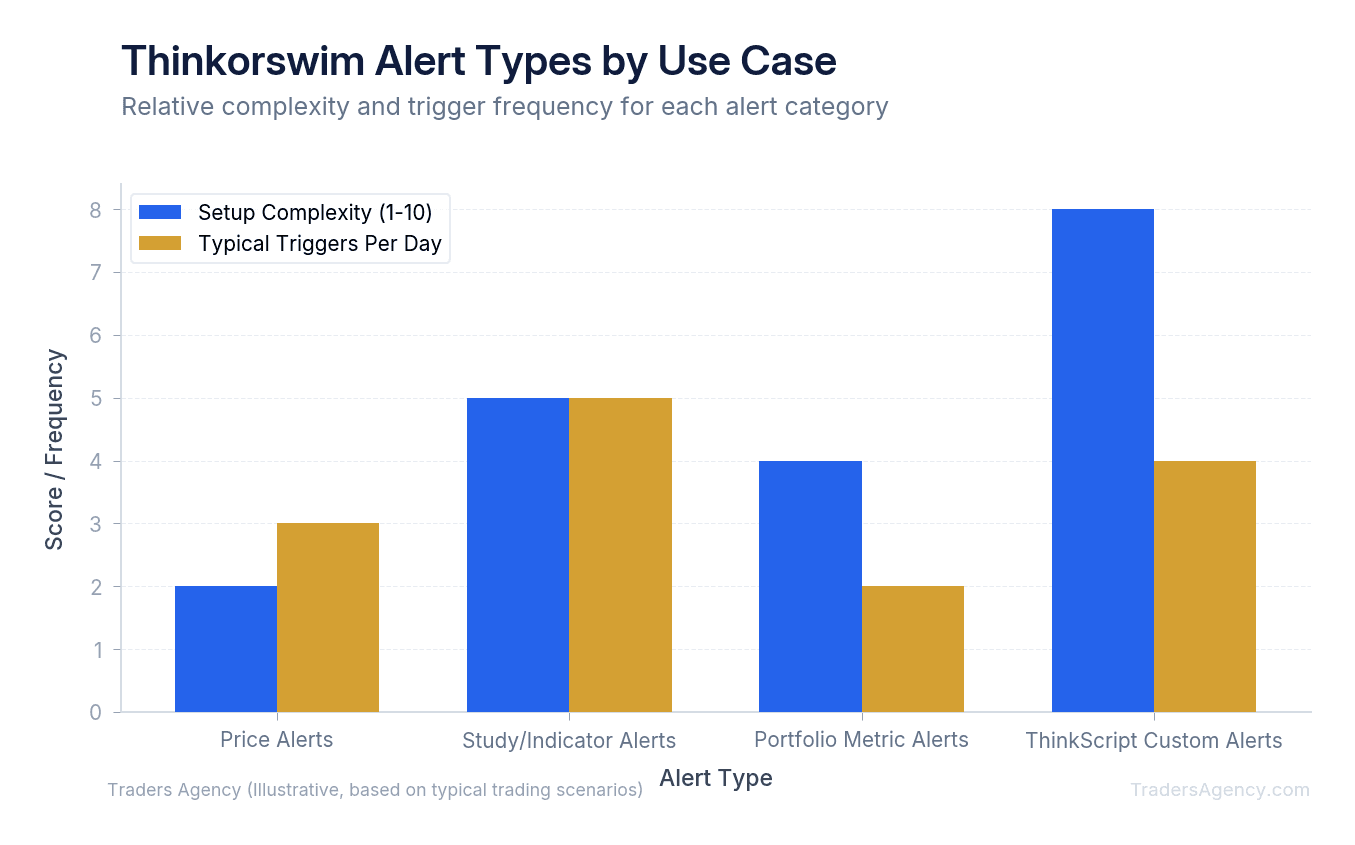
Key Concept: Price alerts watch a single number. Study alerts watch a technical condition. ThinkScript alerts let you combine multiple conditions and timeframes into one powerful trigger. Start with price alerts and work your way up.
How to Set Up a Price Alert on Thinkorswim
To set up a price alert on thinkorswim, right-click anywhere on a stock chart, select "Create Alert," and choose your condition. You'll define the trigger, such as the stock price crossing above a specific resistance level, and then click "Create" to activate the notification.
Here's a concrete example. Assume AAPL is currently trading at $175.50. We've identified a strong resistance level at $178.00. We want to buy a breakout, but we don't want to sit and watch the 5-minute chart all morning.
Here's what we teach our members to do:
- Open the Alert Dialog: Go to the Charts tab and pull up the AAPL chart. Right-click directly on the chart near the $178.00 level. A menu will appear. Select Create Alert. This opens the Alert Rules window.
- Define the Trigger Condition: In the Alert Rules window, you'll see a section labeled "Notify me when." Set the parameters as shown in the table below.
- Review and Activate: Scroll down to the bottom of the window and click the Create button. You'll now see a horizontal line on your AAPL chart at $178.00 with a small bell icon next to it. When AAPL crosses this price, the platform will immediately notify you.
| Parameter | Value |
|---|---|
| Symbol | AAPL |
| Price Type | Mark (the midpoint between Bid and Ask, reducing false triggers in wide-spread options) |
| Condition | At or Above |
| Threshold | $178.00 |
How to Set Up Alerts Based on Technical Indicators
To set up alerts on thinkorswim based on indicators, open the MarketWatch tab, select Alerts, and choose "Study Alert." From there, you can select any built-in technical indicator, like the RSI or MACD, and define the exact crossover or threshold condition that will trigger your notification.
Study alerts are extremely useful for intermediate traders. Instead of just waiting for a price, you're waiting for a specific market condition.
Here's a practical example. Say you want to trade a mean-reversion strategy on the SPY. You want to be notified when the 14-period RSI drops below 30 on the daily chart.
- Access the Study Alert Menu: Click on the MarketWatch tab at the top of your screen, then click the Alerts sub-tab. In the top right corner of this section, click the Study Alert button.
- Configure the Condition Builder: A new window will open with a condition builder. Click on the default condition to edit it. Change the first dropdown to Study. Search for RSI and select it. Change the middle operator to Is Less Than or Equal To. Change the final dropdown to Value and type in 30.
- Set the Timeframe: This is a step many traders miss. You must set the aggregation period for your study. In the top right of the condition builder, change the timeframe from the default (usually 1 minute or 5 minutes) to Day. If you leave it on a 1-minute chart, you'll get bombarded with alerts every time the intraday RSI dips. Click Create to finalize the setup.
Watch Out: If you forget to change the aggregation period, your study alert will default to a short intraday timeframe. This means you'll receive dozens of false triggers throughout the day. Always double-check that the timeframe matches your trading strategy.
Want expert trading insights delivered daily?
Join thousands of traders who rely on Traders Agency for market analysis and trade ideas.
Join Traders AgencyHow Do You Set Up Push Notifications on Thinkorswim?
To receive push notifications from thinkorswim, you must first install the mobile app on your smartphone and enable notifications in your device settings. Then, open the desktop platform, go to Application Settings, select Notifications, and check the box for "Push notifications to mobile devices."
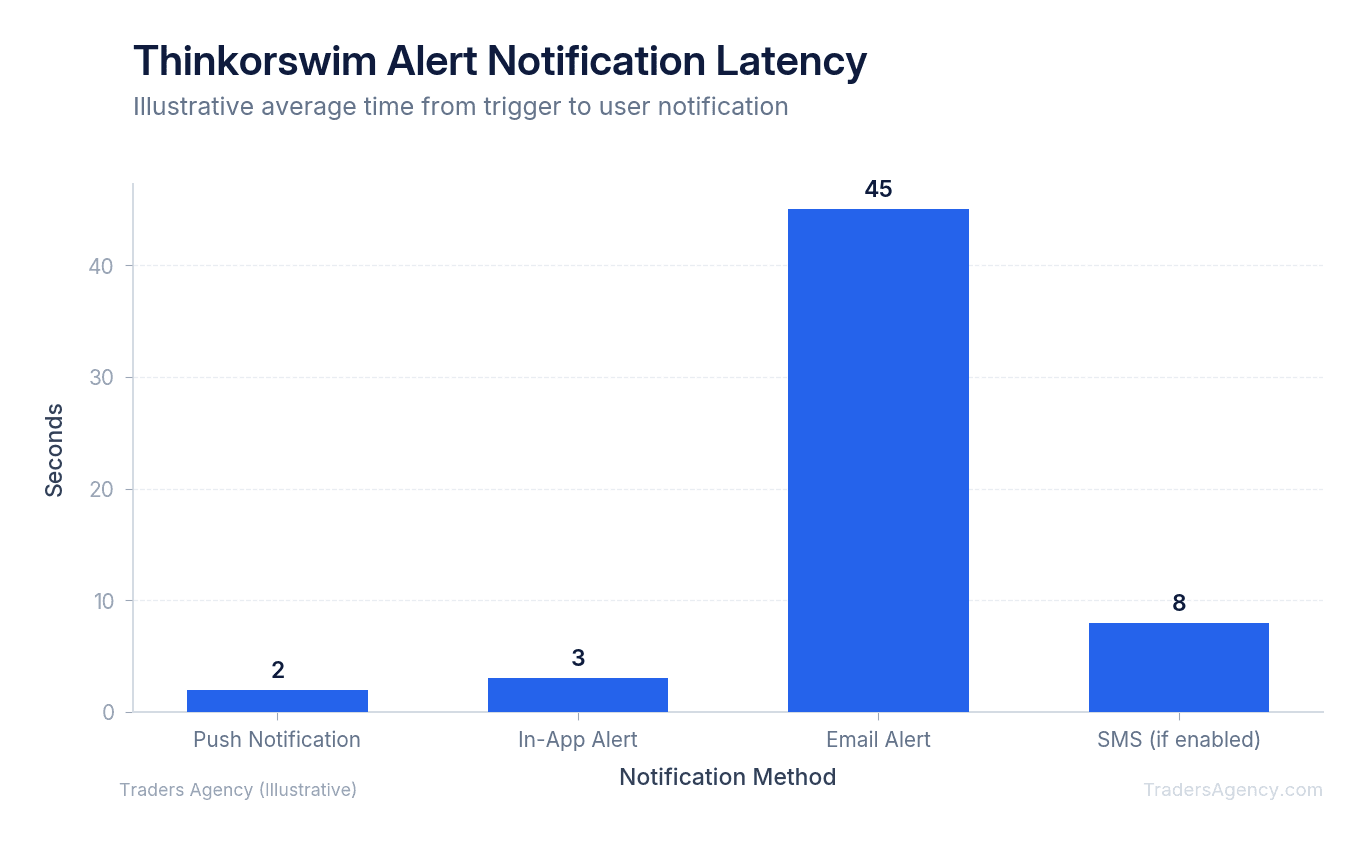
An alert is only useful if you actually see it. The platform offers three main delivery methods: in-app sounds, emails, and push notifications.
Our team highly recommends using push notifications for active trading. Email alerts can get delayed by spam filters or server routing. In-app alerts only work if you're sitting at your computer with the volume turned up. Push notifications hit your phone screen almost instantly.
To ensure your push notifications are working correctly:
- Open the desktop platform and click Setup in the top right corner.
- Select Application Settings.
- Click on the Notifications tab on the left side.
- Verify that your mobile device is listed under the "Push notifications" section.
- Check the boxes next to the specific alert types you want sent to your phone.
| Delivery Method | Speed | Best For |
|---|---|---|
| Push Notification | Near-instant | Active trading, time-sensitive entries |
| Variable (seconds to minutes) | End-of-day reviews, non-urgent alerts | |
| In-App Sound | Instant (desktop only) | Traders sitting at their workstation |
How Do You Use ThinkScript to Create Custom Alert Conditions?
Once you master basic price and study alerts, you might find that you need more specific conditions. This is where ThinkScript comes in. ThinkScript allows you to write custom logic for your alerts, and you don't need to be a professional programmer to use it.
Here's a classic setup: the moving average crossover. We want an alert when the 50-day Simple Moving Average (SMA) crosses above the 200-day SMA, commonly known as a "Golden Cross."
- Open the Study Alert window again, but this time click on the thinkScript Editor tab instead of using the condition builder.
- Paste this simple code:
Average(close, 50) crosses above Average(close, 200) - Make sure your timeframe is set to Day, and click Create.
The platform will now monitor the math in the background and ping your phone the moment that daily crossover occurs. This frees up massive amounts of mental capital. You no longer have to flip through 50 different charts every night looking for moving average crossovers.
Key Concept: ThinkScript alerts run server-side, meaning the platform monitors your conditions even when your desktop is closed. Write the logic once, and let the system do the scanning for you around the clock.
How Do You Manage and Edit Active Alerts in Thinkorswim?
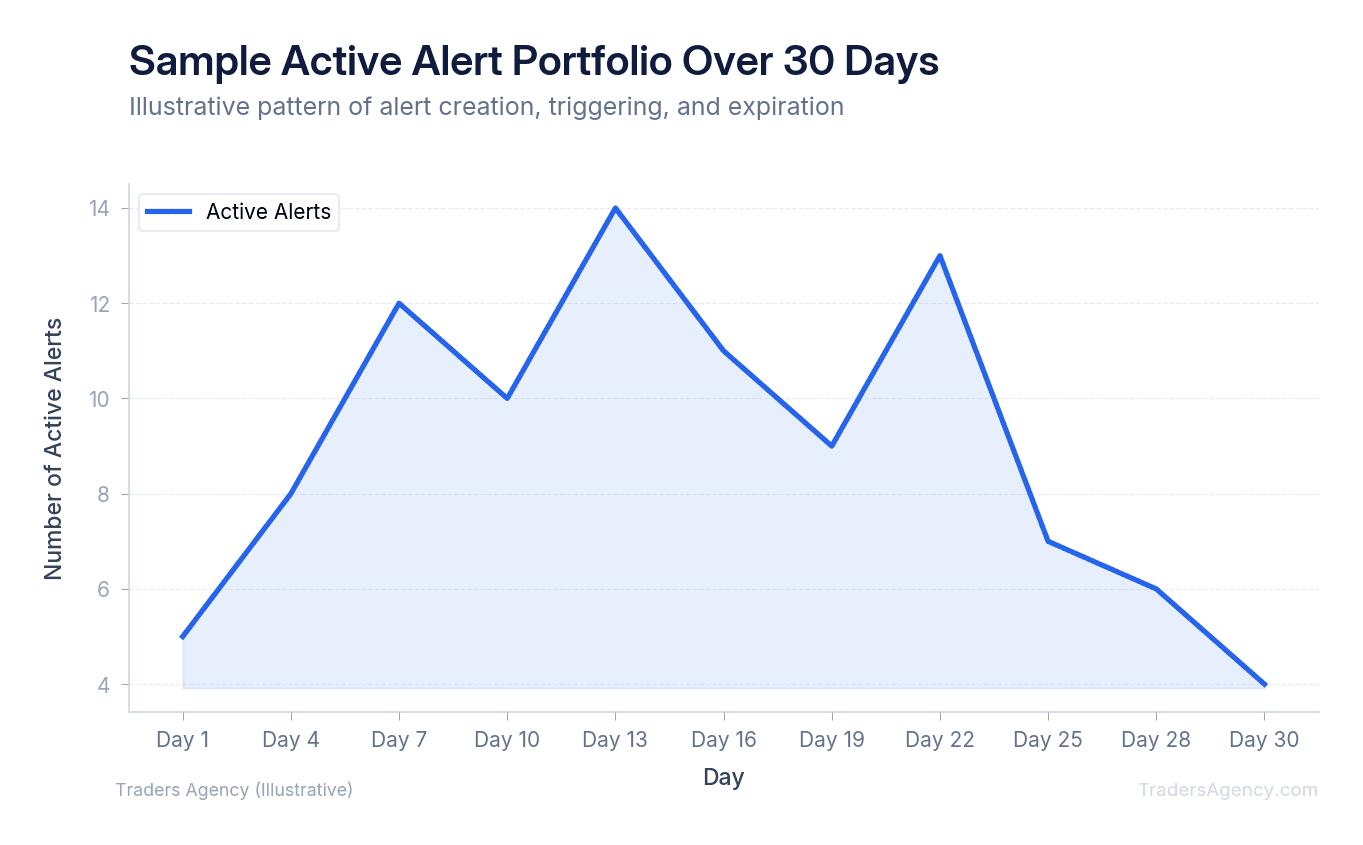
Setting alerts is only half the battle. You also need to manage them. An alert you set three weeks ago might no longer be relevant today.
To view all your active, triggered, and canceled alerts, go to the MarketWatch tab and click on Alerts. This screen acts as your command center. You'll see a list of every active trigger.
- If you need to change a price level, right-click the active alert in the list and select Replace Alert. This brings up the original menu where you can adjust your threshold.
- If an alert is no longer valid because the setup failed, right-click and select Cancel Alert.
We recommend auditing your alert book every weekend. Delete alerts for setups that have already played out or broken down. Keeping your alert list clean prevents confusion during fast-moving market hours.
Practical Application: When to Use Thinkorswim Price Alerts
Alerts are tools, and like any tool, they must be used correctly. We teach our members to use alerts primarily for trade entry setups and hard stop-loss monitoring.
When to Use Alerts
You should use a thinkorswim price alert when you're waiting for a specific technical confirmation before entering a trade. If you're watching a stock consolidate in a tight range between $50.00 and $52.00, don't stare at the chop. Set an alert at $52.10 for the upside breakout and $49.90 for the downside breakdown. Let the platform do the heavy lifting.
Alerts are also excellent for monitoring options contracts. Because options pricing (premium) moves differently than the underlying stock, you can set an alert directly on the options chain. Right-click the specific strike price on the Trade tab and set an alert for when the premium hits your target profit level.
Common Mistakes to Avoid
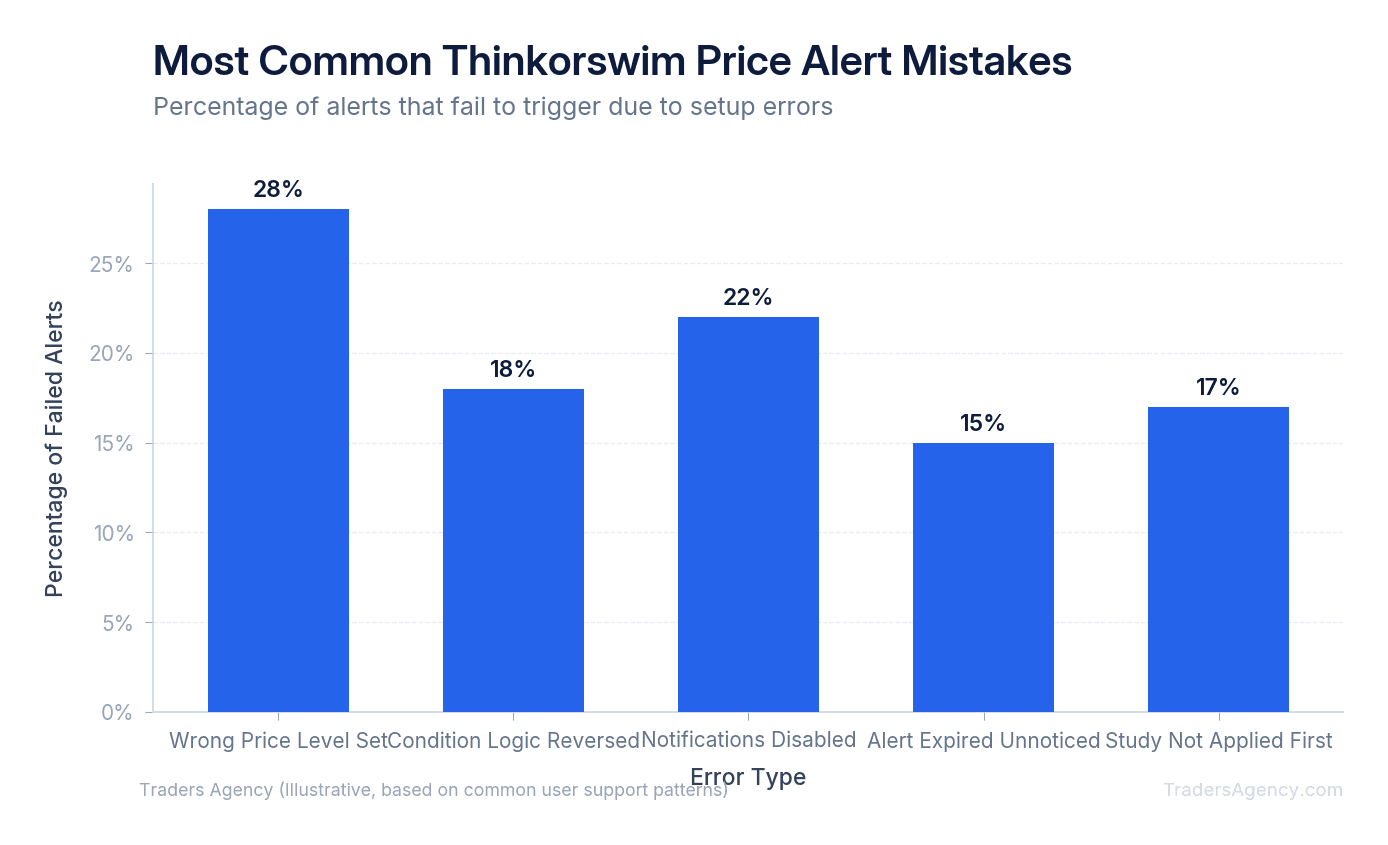
The most common mistake we see is "alert fatigue." If you set 40 different alerts on 1-minute charts, your phone will ring constantly. You'll eventually start ignoring the notifications, defeating the entire purpose of the system. Keep your alerts focused on high-probability setups on higher timeframes (15-minute, hourly, or daily charts).
Another frequent error involves after-hours trading. By default, many study alerts only calculate during regular trading hours. If a stock gaps up massively in the pre-market, your alert might not trigger until the market officially opens at 9:30 AM EST. If you trade pre-market, ensure you check the box for "Include Extended-Hours Trading" in your chart settings.
Risk Warning: Alerts are notifications, not execution orders. An alert will not automatically buy or sell a stock for you. If you set an alert as a mental stop-loss, you still have to manually execute the trade when the alert fires. For strict risk management, we recommend using actual stop-loss orders rather than relying solely on alerts. Markets can move fast, and the time it takes you to open your app after hearing an alert might cost you significant capital. Use alerts to monitor profit targets and entries, but rely on hard orders to protect your downside. The SEC's guidance on order execution reinforces how quickly prices can shift in volatile conditions.
By integrating thinkorswim price alerts into your daily routine, you can step away from the monitors, reduce emotional trading, and let the platform tell you exactly when it's time to act.
Want expert trading insights delivered daily?
Join thousands of traders who rely on Traders Agency for market analysis and trade ideas.
Join Traders AgencyKey Takeaways
- Thinkorswim supports four distinct alert types: basic price alerts, study alerts tied to technical indicators, portfolio metric alerts for account balances, and custom ThinkScript alerts.
- ThinkScript alerts allow you to build multi-condition notifications that go beyond simple price triggers, letting you combine indicators into a single alert logic.
- Push notifications can be routed directly to your phone, so you can monitor positions and act on setups without being tied to a desktop.
- For downside protection, the article recommends using hard stop-loss orders instead of relying on alerts alone, since market moves can outpace your response time after a notification fires.
- Alerts are best used to flag entries and profit targets, while actual orders handle risk management, a distinction that reduces emotional decision-making under pressure.
DISCLAIMER: Traders Agency does not offer financial advice. The information provided is for educational purposes only and should not be considered financial advice. Traders Agency is not responsible for any financial losses or consequences resulting from the use of the information provided. Trading carries inherent risks and may not be suitable for all individuals. You are advised to conduct your own research and seek personalized advice before making any investment decisions, recognizing the potential risks and rewards involved.
See more from Traders Agency on Google
Make us a preferred source and our market analysis will appear more prominently in your Google Search, Top Stories, and AI results.
Add to Preferred Sources