
You've probably experienced this before: you step away from your trading desk for ten minutes, and your target stock breaks out without you. Missing a prime entry point is frustrating, and it costs you money. Thinkorswim price alerts are automated notifications that trigger when a specific asset reaches a predetermined price level or technical condition, and they're one of the most effective tools we teach our members to use every single day.
Our team recommends using automated alerts to monitor the market so you don't have to stare at charts all day. We'll walk you through setting up basic price triggers, configuring custom ThinkScript study alerts, and managing your active notifications. By the end of this guide, you'll know exactly how to configure these tools to fit your daily trading routine.
Key Concept: Alerts remove the emotional urge to constantly check your portfolio. They allow you to define your trading plan in advance and wait for the market to come to you.
What Types of Alerts Can You Set in Thinkorswim?
Bottom Line: Thinkorswim price alerts are most valuable when treated as a planning tool built around a defined strategy, not a substitute for judgment at execution time. The platform's five alert types give traders flexible coverage across price levels, technical conditions, and market events. Configure alerts deliberately, keep the list manageable, and always verify conditions before entering a trade when a notification fires.
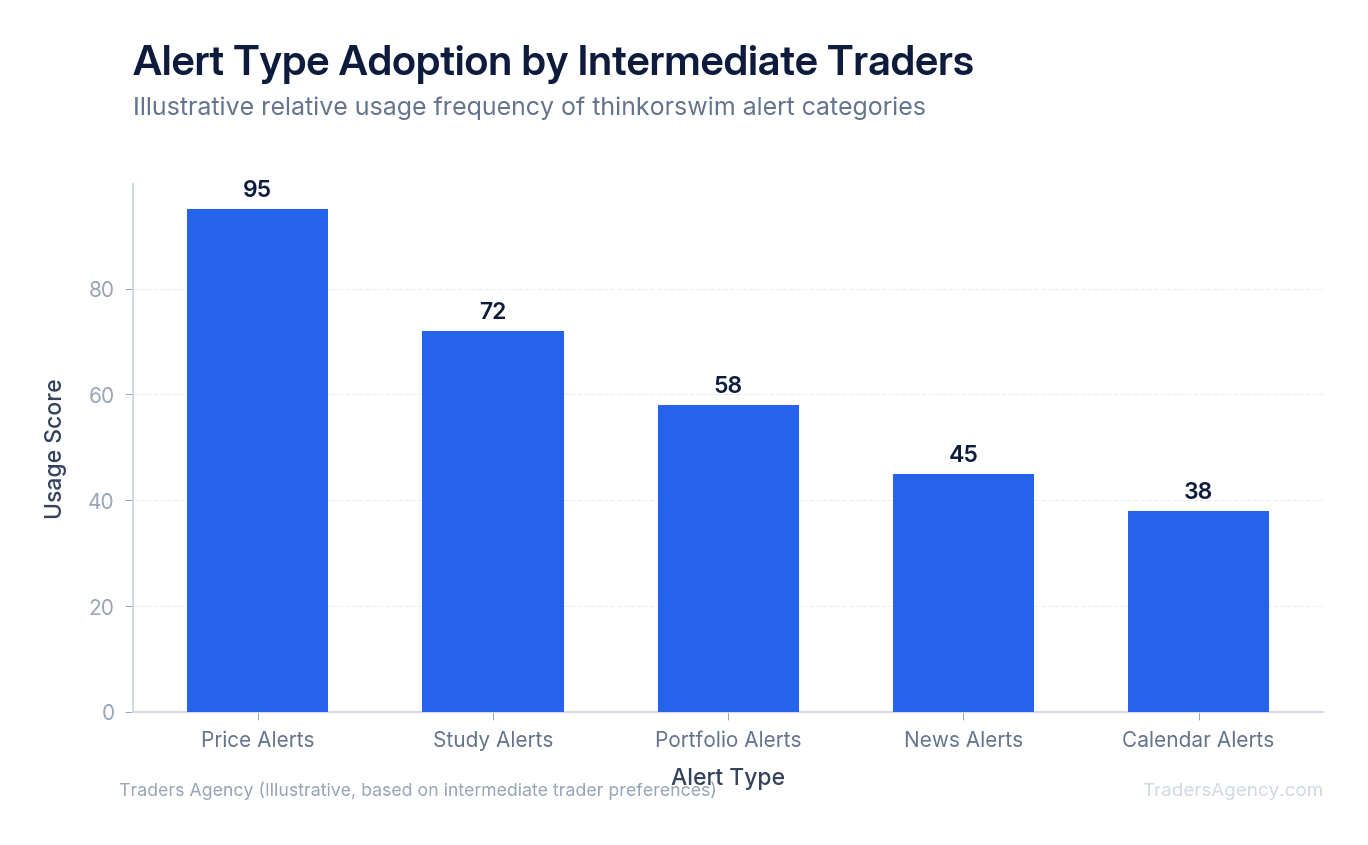
You can set five main types of alerts in thinkorswim: price alerts, study alerts, portfolio alerts, news alerts, and calendar alerts. Price alerts trigger at specific price levels, while study alerts use technical indicators or custom ThinkScript conditions. Portfolio alerts track account metrics, news alerts monitor headlines, and calendar alerts notify you of earnings and other corporate events.
Here's exactly how each one functions on the platform:
- Price alerts: Trigger when an asset crosses a specific price threshold.
- Study alerts: Use technical indicators or custom ThinkScript conditions to generate notifications based on your defined criteria.
- Portfolio alerts: Track account metrics like margin balances or net liquidating value.
- News alerts: Monitor financial headlines for specific ticker symbols.
- Calendar alerts: Notify you of upcoming corporate events like earnings calls or dividends.
We teach our members to combine these categories for a complete market monitoring system. For example, you might set a news alert for Apple (AAPL) alongside a price alert at $185.50. This combination ensures you know both when the stock moves and why it's moving.
Portfolio alerts are excellent for risk management. You can configure the platform to notify you if your account's available buying power drops below a specific threshold. Calendar alerts help you avoid holding short-term options positions through volatile earnings announcements.
How Do Push Notifications, Email, and In-App Alerts Differ?
Push notifications deliver instant alerts directly to your mobile device screen, making them ideal for fast trades. Email alerts send detailed messages to your inbox but often experience slight delivery delays. In-app alerts trigger sounds and visual pop-ups exclusively within the active thinkorswim desktop or mobile application.
We prefer to use push notifications for immediate action items like a stock hitting our entry target. If you're day trading, seconds matter. A push notification ensures you can open the mobile app and execute your trade immediately.
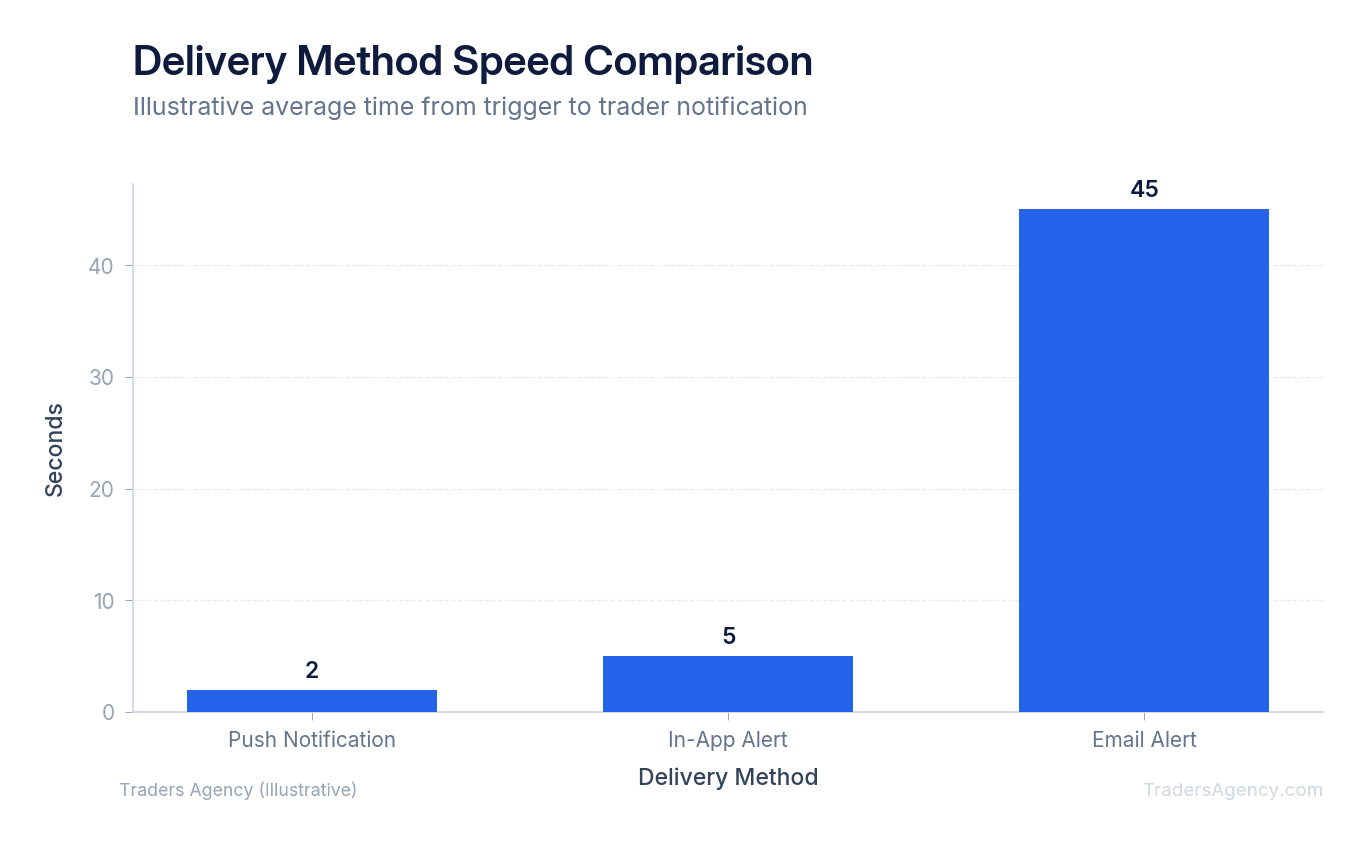
Email alerts work better for end-of-day summaries or longer-term swing trade setups where a five-minute delay won't ruin the trade. Understanding your platform's notification latency helps you manage execution risk. The SEC's guidance on electronic trading reinforces how awareness of order execution timing is a core part of responsible trading.
Watch Out: Never rely on a single delivery method for an important trade. We always recommend enabling both in-app sounds and push notifications. If you step away, the phone notification catches your attention. If you're at your desk looking at a different monitor, the desktop chime alerts you to the setup.
How Do You Set Up Price Alerts in Thinkorswim?
Setting up thinkorswim price alerts requires just a few clicks on the desktop platform. Here's the exact process we use to monitor a breakout setup.
Let's say you're watching Tesla (TSLA). The stock is trading at $210.00, and you want to buy if it breaks resistance at $215.50.
- Initiate the Alert: Right-click anywhere on the TSLA chart in your desktop platform. Select Create Alert from the drop-down menu to open the configuration window. This is the fastest way to pull up the correct ticker symbol without typing it manually.
- Configure the Conditions: Set the condition to Mark price is At or Above. Enter your exact target price of $215.50 in the threshold box. We prefer using the Mark price rather than the Bid or Ask, especially for volatile stocks, because it represents the midpoint between the bid and ask and provides a more stable reference point when spreads are wide.
- Select Delivery Methods: Scroll down to the Notify with section and select your preferred delivery method. Check the boxes for mobile push and a desktop chime. Ensure your phone number or email address is correctly linked in your platform settings.
- Activate the Trigger: Click Create to activate the alert. You'll see a small tag appear on your chart at the $215.50 level.
| Scenario | What Happens | Outcome |
|---|---|---|
| Best Case | TSLA hits $215.50, your phone buzzes instantly | You execute your trade at your target entry |
| Worst Case | You set the condition backward (e.g., "At or Below") | The alert fires immediately, causing confusion |
| Most Likely | The alert sits quietly for a few days | The market dictates the next move on its own timeline |
Using Alerts for Options Strategies
You can also use this exact process for options strategies. If you're selling a covered call on Microsoft (MSFT), you might sell the $400 strike call expiring in 30 days for a $5.00 premium. Your max gain is realized if the stock stays at or below $400 at expiration. You can set a price alert on the option contract itself. If the premium drops to $1.00, the alert fires, and you can buy the contract back to lock in an 80% profit early.
Want expert trading insights delivered daily?
Join thousands of traders who rely on Traders Agency for market analysis and trade ideas.
Join Traders AgencySetting Up Study Alerts Using ThinkScript Conditions
Intermediate traders often need notifications based on technical indicators rather than static prices. Thinkorswim allows you to build these using ThinkScript conditions, which means you don't have to manually scan hundreds of charts looking for specific technical setups.
We frequently use the Relative Strength Index (RSI) to spot oversold conditions. Instead of watching the RSI line all day, you can automate the process:
- Open the MarketWatch tab and select Alerts.
- Choose Study Alert and select RSI from the condition list.
- Set the parameters to notify you when the 14-period RSI crosses below 30 on a 15-minute chart.
You can also combine conditions. For example, you might want an alert when the MACD line crosses above the signal line, but only if the stock is trading above its 200-day moving average. You can program this exact logic into the ThinkScript editor by linking the two conditions with an "AND" statement.
Watch Out: Always verify your chart timeframe matches your alert timeframe. A daily RSI alert won't help you day trade a 5-minute chart. We see many traders configure a brilliant custom alert but forget to change the aggregation period from "Day" to "5 min."
How to Edit and Manage Your Active Alerts
You can edit an alert in thinkorswim by going to the MarketWatch tab and selecting the Alerts sub-tab. Locate your active alert in the list, right-click the alert row, and select Replace Alert. This opens the original configuration window where you can adjust the price, condition, or delivery method.
We recommend reviewing your active alerts every weekend. Market conditions change, and a price target set two weeks ago might no longer make sense today. You can also cancel alerts entirely from this same menu by selecting Cancel Alert.
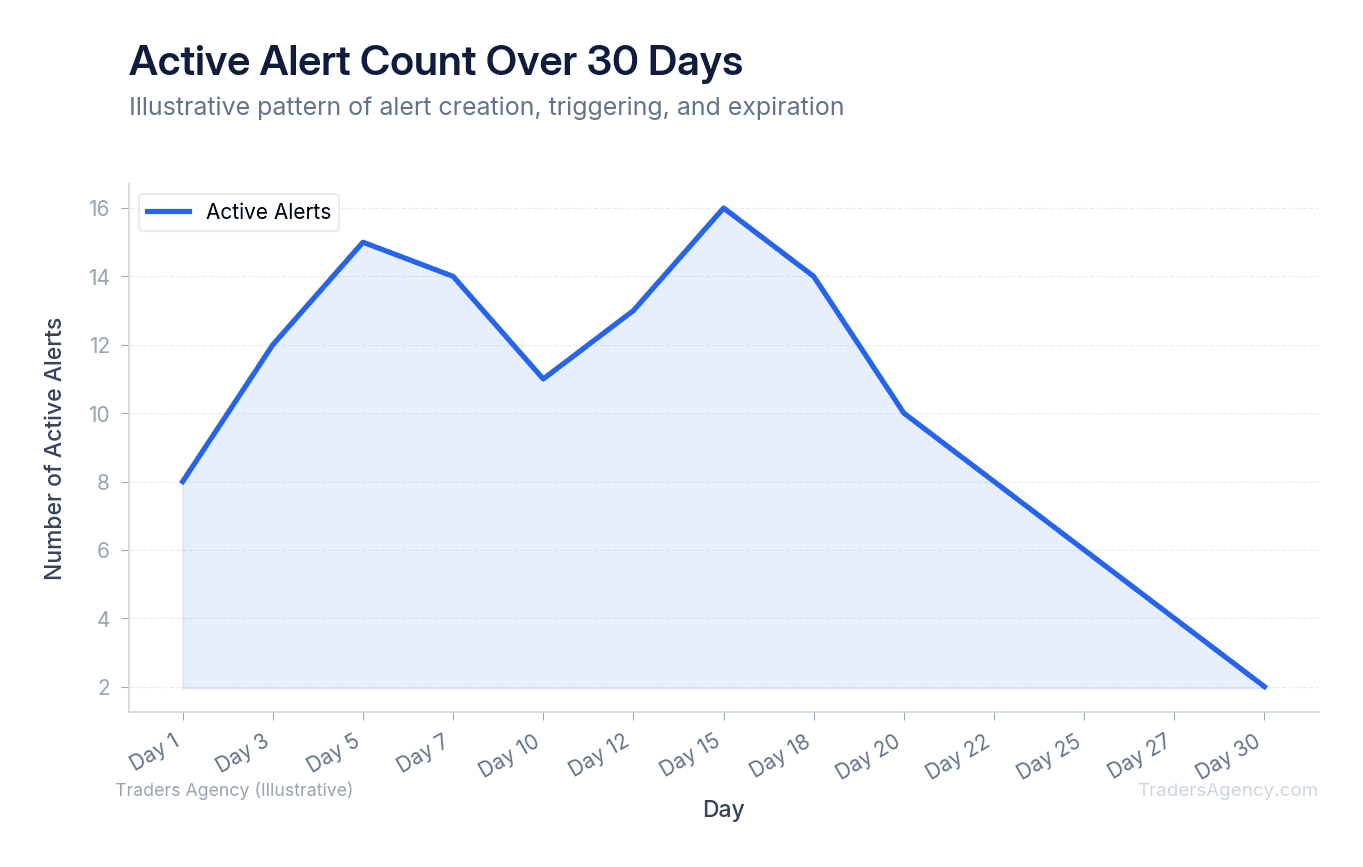
Keeping your alert list clean is a core part of platform maintenance. If you leave dozens of old alerts active, you'll eventually receive a notification for a stock you stopped watching months ago. This creates unnecessary distraction. We teach our members to delete any alert that hasn't triggered within 30 days, unless it's tied to a specific long-term investment thesis.
Why Are My Thinkorswim Alerts Not Triggering?
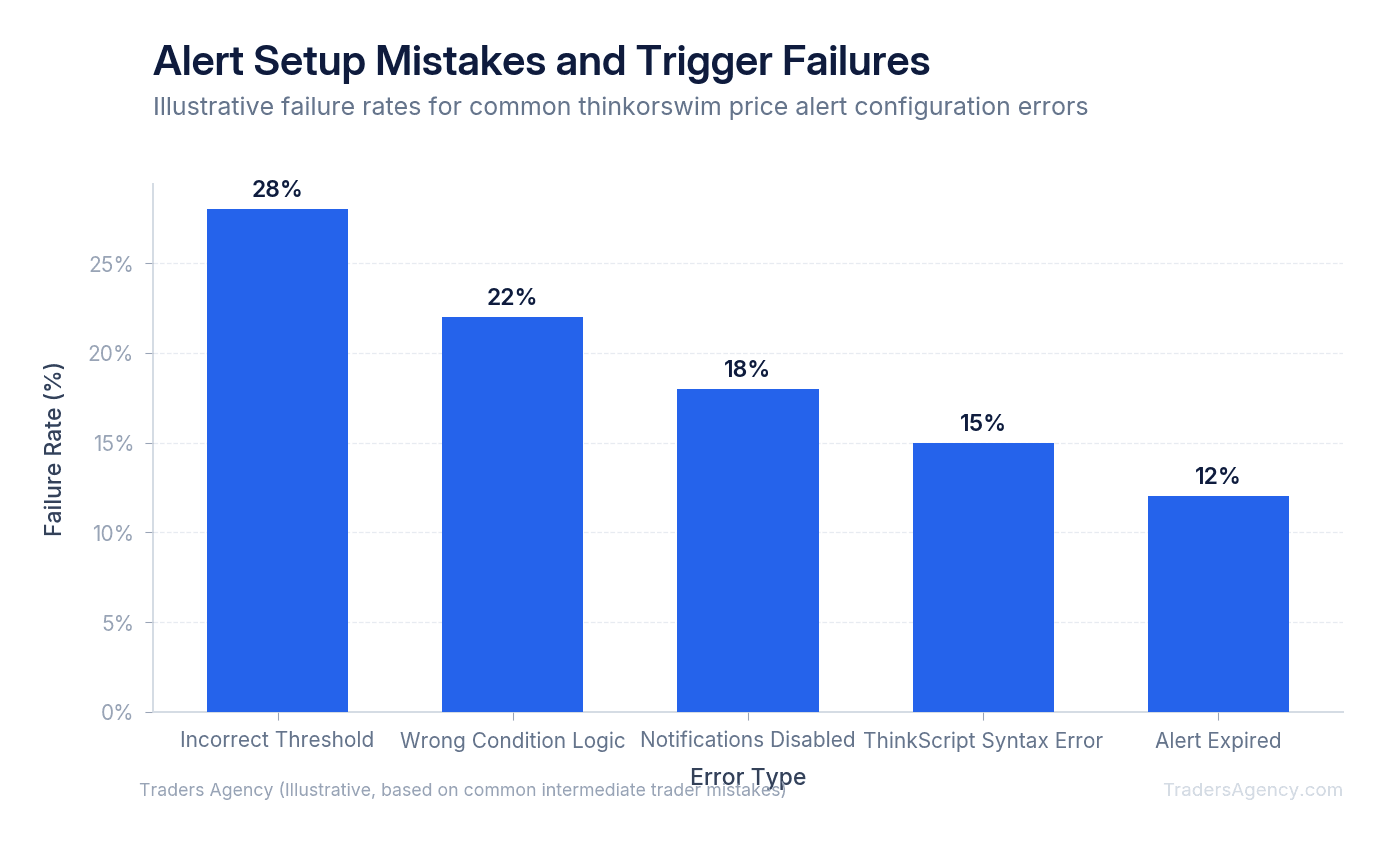
Sometimes you set an alert, the stock hits your price, and nothing happens. Our team sees this issue frequently with intermediate traders adjusting to the platform. Here are the most common causes and how to fix them:
- Wrong price type selected: If you set an alert based on the Ask price, but only the Bid crosses your threshold, the alert will remain silent. We recommend using the Mark price for almost all standard alerts to avoid this spread-related confusion.
- Disabled application permissions: If you want mobile push notifications, you must ensure your smartphone settings allow the thinkorswim app to send alerts. If your phone is in "Do Not Disturb" mode, you'll miss the notification entirely.
- Incorrect active hours: If you configure an alert to only trigger during regular market hours, a massive price swing at 7:00 AM won't trigger your notification. You must explicitly check the box to include extended-hours trading if that's your goal.
When Should You Use (and Avoid) Custom Alerts?
Custom alerts are excellent tools for maintaining discipline and managing your time. You should use them when you have a clearly defined trading plan with specific entry and exit criteria. If you know exactly what price you want to buy at, an alert does the heavy lifting for you.
However, you should avoid relying on alerts as automatic trade execution triggers unless you're using advanced conditional orders. An alert simply tells you a condition was met. It does not guarantee you'll get a good fill on your order. Market conditions can change rapidly between the time an alert fires and the time you open your order ticket.
Risk Management and Position Sizing
Alerts tie directly into your risk management strategy. We use price alerts as a warning system before a hard stop loss is hit. Here's how it works:
| Parameter | Value |
|---|---|
| Entry Price | $50.00 |
| Hard Stop Loss | $45.00 |
| Early Warning Alert | $46.50 |
This early warning gives you time to evaluate the trade. Is the broader market selling off? Did negative news break? The alert allows you to make an informed decision rather than simply getting stopped out blindly. Never allocate more than 1% to 2% of your total account capital to a single trade idea, regardless of how perfectly your alert conditions line up.
Common Mistakes to Avoid
The most frequent mistake we see is alert fatigue. If you set fifty different alerts on fifty different stocks, your phone will ring constantly. You'll eventually start ignoring the notifications. Keep your active alerts limited to your top five or ten highest-probability setups.
Another common error is failing to account for after-hours trading. If you set an alert based on regular trading hours, a massive gap up or down in the pre-market might bypass your alert entirely. Always check your platform settings to ensure alerts are configured to include extended-hours trading if that fits your strategy.
Key Concept: Alerts are a planning tool, not a trading autopilot. Define your plan first, set your alerts second, and always confirm market conditions before executing when an alert fires.
Want expert trading insights delivered daily?
Join thousands of traders who rely on Traders Agency for market analysis and trade ideas.
Join Traders AgencyKey Takeaways
- Thinkorswim supports five distinct alert types: price alerts, study alerts, portfolio alerts, news alerts, and calendar alerts, each serving a different monitoring purpose.
- Study alerts use ThinkScript conditions, meaning you can trigger notifications based on technical indicator logic rather than a fixed price level alone.
- Keeping active alerts limited to your top five to ten highest-probability setups prevents notification fatigue and the habit of ignoring triggers.
- Alerts set for regular trading hours may miss significant pre-market or after-hours price moves, so platform settings should be checked to include extended-hours trading where appropriate.
- The core discipline behind effective alert use is defining your trading plan before setting the alert, then confirming market conditions manually when the alert fires rather than acting automatically.
DISCLAIMER: Traders Agency does not offer financial advice. The information provided is for educational purposes only and should not be considered financial advice. Traders Agency is not responsible for any financial losses or consequences resulting from the use of the information provided. Trading carries inherent risks and may not be suitable for all individuals. You are advised to conduct your own research and seek personalized advice before making any investment decisions, recognizing the potential risks and rewards involved.
See more from Traders Agency on Google
Make us a preferred source and our market analysis will appear more prominently in your Google Search, Top Stories, and AI results.
Add to Preferred Sources