
A TradingView chart setup is the combination of symbol, timeframe, indicators, and drawing tools you configure so you can read a market clearly. Get it right and your decisions get sharper. Get it wrong, either by leaving everything on default or stacking ten indicators on one screen, and you end up guessing. We're going to walk you through building a chart from a blank screen to a working analysis tool, one step at a time.
If you've ever opened TradingView for the first time and felt lost staring at a wall of buttons, you're in good company. Our team sees both failure modes constantly from members who are just getting started: the untouched default chart that hides useful information, and the over-decorated chart that hides useful information in a different way.
By the end of this guide, you'll know how to build a clean TradingView chart setup for beginners on the free plan, add the three indicators we consider essential, draw trend lines and support/resistance zones, save your layout so you never rebuild it from scratch, and set a price alert. No paid subscription required.
What Is a TradingView Chart Setup?
Bottom Line: A clean TradingView chart setup comes from using a few well-understood tools, one trend indicator, one momentum indicator, and one defined price level, rather than stacking on every option available. The chart itself only identifies conditions and levels; risk management, position sizing, and exit plans need a separate, written process to actually decide a trade.
A TradingView chart setup refers to the symbol, timeframe, indicators, drawing tools, and saved preferences you use to view a market. It's your personal workspace for reading price action.
Think of it like setting up a desk before you start work. You wouldn't write a report with no pen, no paper, and no lamp. A chart with no moving averages, no volume, and no way to mark levels is the same problem wearing a different outfit.
TradingView is the most widely used charting platform among retail traders, and it's free to start. You don't need to spend anything to build a functional TradingView chart setup free of charge, which is exactly why we point newer members there first.
Key Concept: A good chart setup doesn't predict the future. It organizes information, trend, momentum, volume, and key price levels, so you can make a decision without squinting.
How Do I Set Up My TradingView Chart?
The short version: create a free account, pick a symbol using the search bar, choose a timeframe that matches your trading style, add two or three indicators (we suggest moving averages, RSI, and MACD), then save the layout under a custom name.
Here's the longer version, because each of those steps has details that trip people up.
1. Create Your Account and Log In
Go to TradingView.com and sign up with an email or a Google/Apple account. Once you complete the TradingView chart login process, you'll land on a default chart, usually showing a major index or crypto pair.
The free plan gives you:
- Unlimited symbols across stocks, crypto, forex, and futures
- A capped number of indicators per chart at once (the free tier allows only a couple, so check TradingView's current plan details)
- 1 chart layout that you can save
- Basic drawing tools, plus a limited number of alerts you can keep active at one time
That's plenty to learn on. You can always upgrade later, once you actually know which features you use.
2. Choose Your Symbol and Timeframe
Click the search bar in the top left and type the ticker you want, for example AAPL, BTCUSD, or EURUSD. At this stage, picking a consistent timeframe matters more than picking the perfect symbol.
For beginners, we generally suggest starting with the daily chart to study the overall trend, then stepping down to a 1-hour or 15-minute chart once you understand the bigger picture. Jumping straight into 1-minute charts before you understand daily structure is one of the fastest ways to get whipsawed by noise.
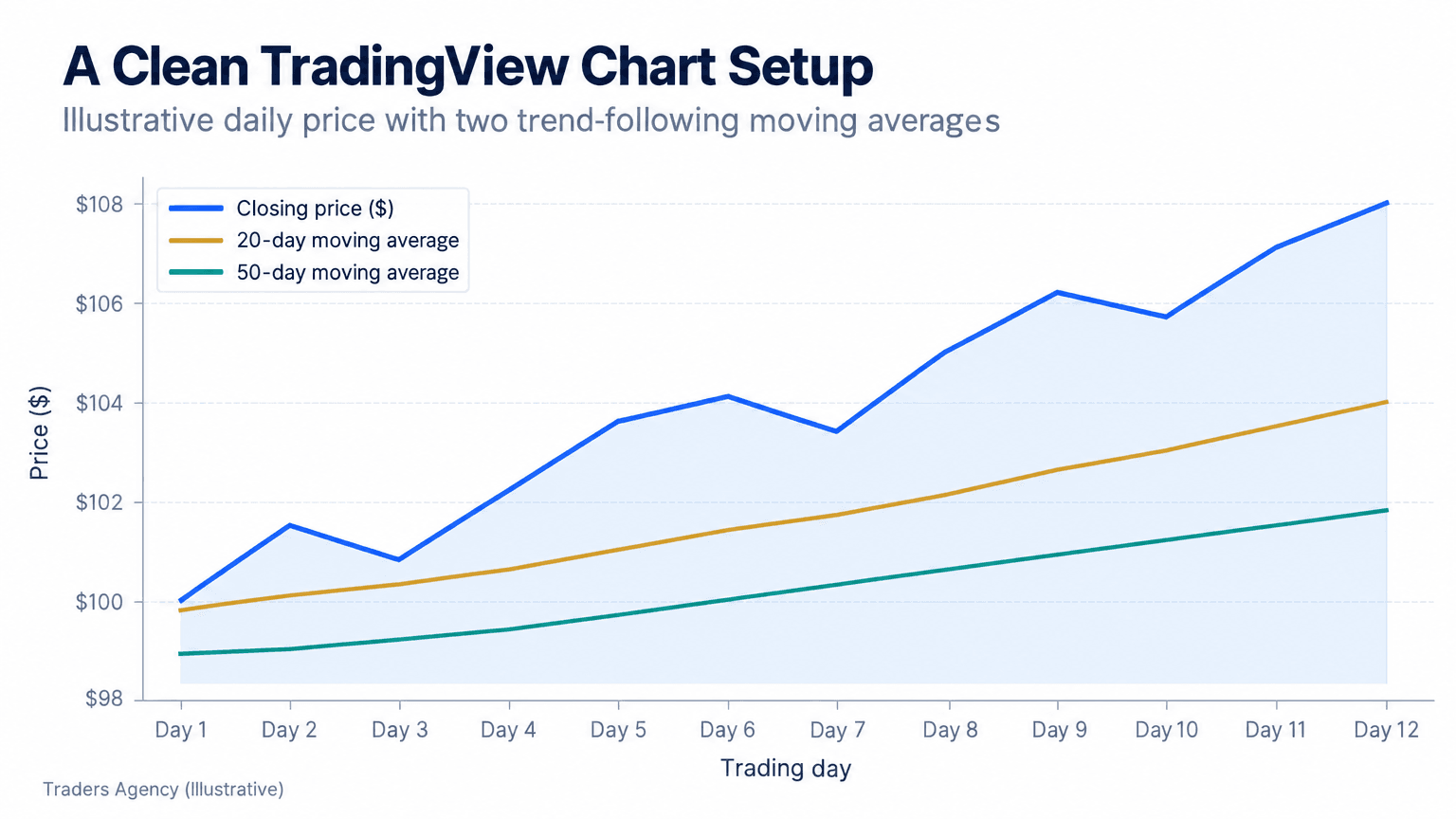
Notice in the chart above how the 20-day moving average (the average closing price over the last 20 sessions) hugs price more tightly than the 50-day moving average. When the shorter line crosses above the longer one, many traders read that as strengthening momentum. A cross below often signals the opposite.
How do you build your first TradingView chart layout?
Here's the exact sequence we recommend to members building a chart from scratch.
- Step 1: Set Your Chart Type. Click the candlestick icon near the top of the chart and select Candles. This shows the open, high, low, and close for each period as a colored bar, which carries far more information than a simple line chart.
- Step 2: Add Moving Averages. Click Indicators at the top, search "Moving Average," and add it twice: once set to 20 periods and once set to 50 periods. Together they give you a fast visual read on short-term and medium-term trend direction.
- Step 3: Set Your Timeframe Toolbar. Along the top you'll see preset buttons like 1D, 1W, and 1M. Click through a few so you can see how the same symbol looks completely different depending on the window of time you're viewing.
- Step 4: Enable Volume. Click Indicators again and add Volume. It appears as a bar chart beneath the price panel and shows how much trading activity occurred during each candle, which helps you judge whether a move has real conviction behind it.
Want expert trading insights delivered daily?
Join thousands of traders who rely on Traders Agency for market analysis and trade ideas.
Join Traders AgencyWhich indicators should you add to a TradingView chart setup?
With moving averages and volume in place, the next layer is momentum. We teach three indicators to beginners because they're widely understood and they don't measure the same thing twice.
Adding RSI
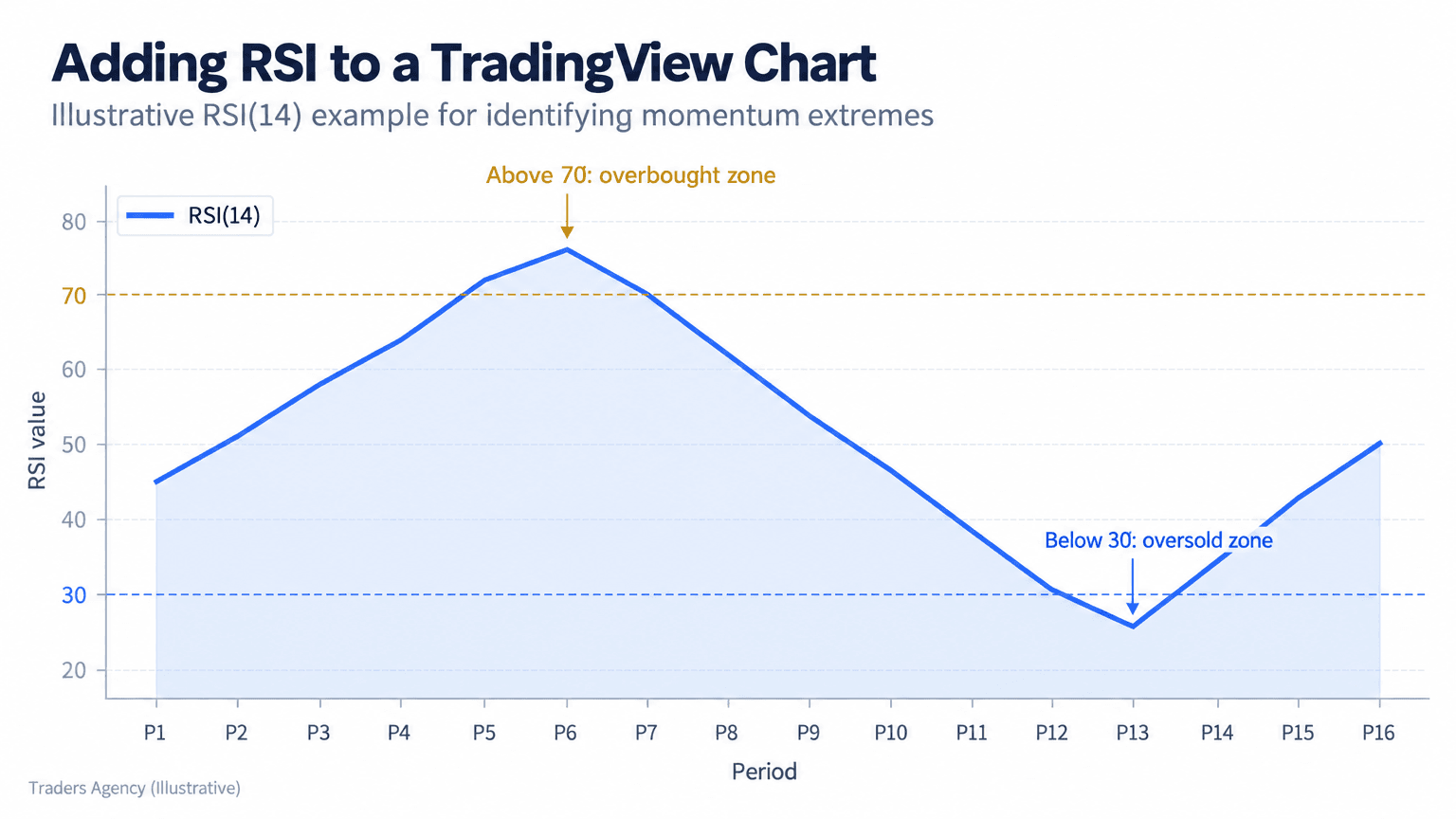
The Relative Strength Index (RSI) measures how fast and how far price has moved recently, on a scale from 0 to 100. Click Indicators, search "RSI," and add it. It appears in a separate panel below price with two reference lines, typically at 30 and 70.
Readings above 70 are generally considered overbought, meaning price has moved up quickly and may pause or pull back. Readings below 30 are considered oversold, the mirror image. RSI doesn't predict reversals on its own, but it's one of the better TradingView chart settings for spotting momentum extremes at a glance.
Adding MACD
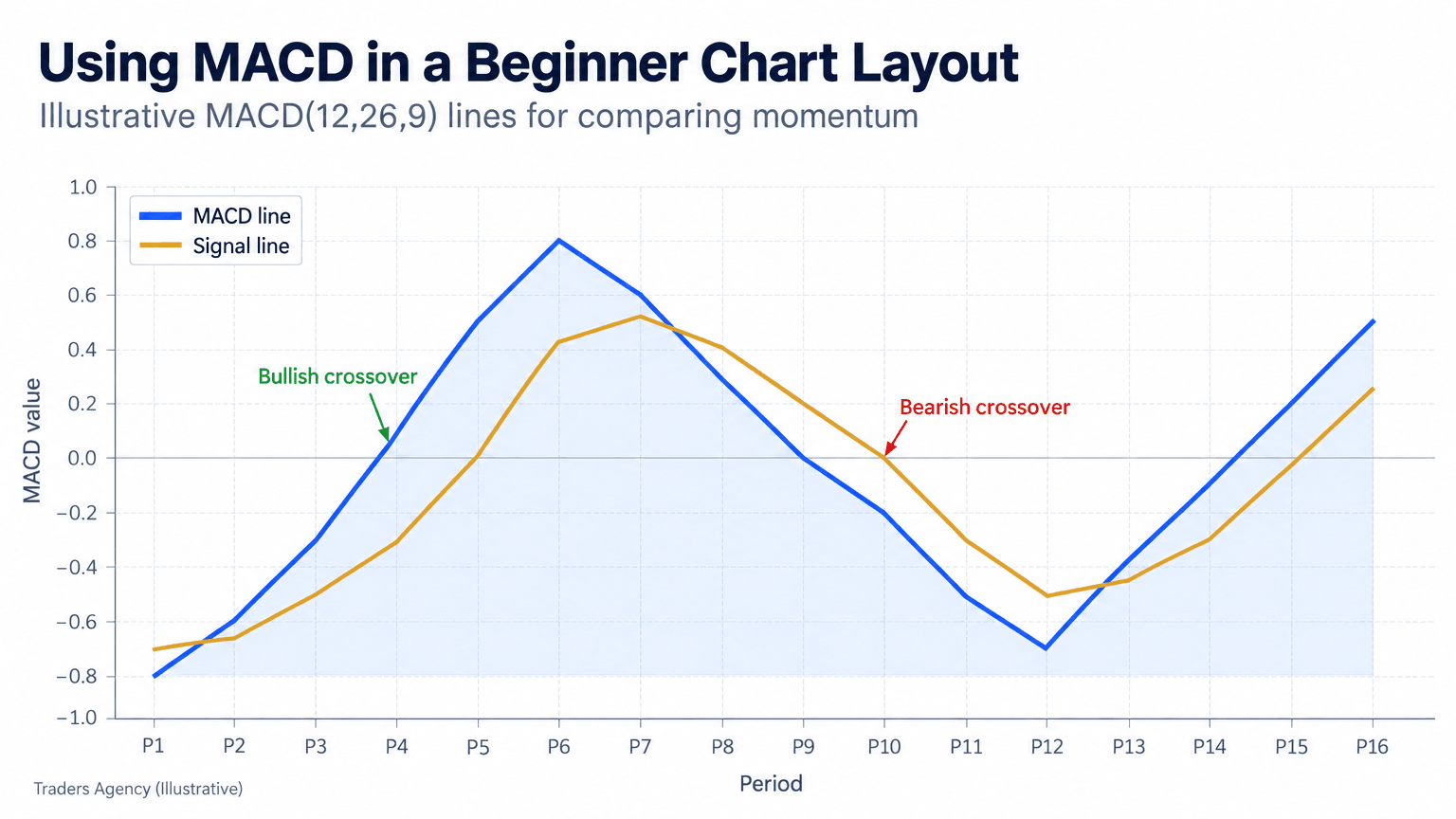
The Moving Average Convergence Divergence (MACD) indicator tracks the relationship between two moving averages of price to help identify shifts in momentum. Add it the same way: Indicators, search "MACD," select it.
You'll see two lines, the MACD line and the signal line, along with a histogram. When the MACD line crosses above the signal line, many traders read it as bullish. A cross below is often read as bearish.
Keep in mind that two moving averages count as two separate indicator slots, so free-tier users will bump against the free-tier indicator cap quickly. When that happens, pick the combination that fits your style instead of trying to cram everything onto one screen.
Which Combination Should You Start With?
| Trading Style | Suggested Indicator Slots | Primary Timeframe |
|---|---|---|
| Trend following | 20 MA, 50 MA, Volume | Daily |
| Swing trading | 50 MA, RSI, Volume | Daily / 4-hour |
| Momentum trading | MACD, RSI, Volume | 1-hour / 15-minute |
Using Drawing Tools for Trend Lines and Support/Resistance
Indicators describe momentum and trend. Drawing tools mark the actual price levels where buyers and sellers have historically stepped in.
Trend Lines
Click the trend line icon in the left-hand toolbar, then click and drag along a series of highs or lows. A trend line connecting at least two or three touchpoints gives you a visual read on the direction and steepness of a move.
Support and Resistance Zones
Support is a price level where buying pressure has historically stopped a decline. Resistance is a level where selling pressure has historically stopped an advance. Use the horizontal line tool, also in the left toolbar, and place it across prior swing highs or swing lows.
A few tips we give members who are just starting out:
- Mark zones, not exact prices. Price rarely respects a level to the penny.
- Look for levels tested two or more times before treating them as meaningful.
- Combine support and resistance with your moving averages. When they line up, the level carries more weight.
Saving and Resetting Your Chart Layout
Once the chart looks the way you want, click the Save icon near the top toolbar and give the layout a name, something practical like "Daily Swing Setup."
If the chart starts feeling cluttered after an experimenting session, reset it. Right-click anywhere on the chart and select Reset chart view, or remove individual indicators by clicking the small "x" next to their name in the indicator legend. Plenty of traders go looking for this after accidentally dragging a panel out of place. It's a quick fix, not a sign you broke something.
Setting a Price Alert
Right-click on the price level you want to monitor and select Add Alert. You can set it to trigger when price crosses, touches, or closes beyond that level, and TradingView will notify you by app, email, or pop-up depending on your notification settings.
Mobile Considerations
The TradingView mobile app mirrors most desktop features, though TradingView chart settings on mobile are condensed into a simplified menu. Indicators, drawing tools, and alerts sync across devices once you're logged into the same account, so a layout you build on desktop shows up on your phone automatically.
What are common TradingView chart setup mistakes to avoid?
- Overloading the chart. Five or more indicators stacked together usually produce conflicting signals rather than clarity.
- Ignoring timeframe mismatch. Using a daily moving average while making decisions off a 5-minute chart gives you inconsistent reads.
- Never saving the layout. Rebuilding your setup every session wastes time and invites sloppy inconsistency.
- Chasing every forum template. Browsing TradingView chart setup threads on Reddit is fine for ideas, but copying someone else's exact settings without understanding why they use them rarely translates to your own style.
- Skipping volume. Price movement without volume context is only half the story.
- Forgetting to check data delays. Free accounts may show delayed data, commonly by around 15 minutes, on certain exchanges, which matters a great deal if you're trading short timeframes. Exchange-specific data rules are published by the exchanges themselves, including Cboe and CME Group.
Watch Out: Treating a single indicator crossover as a standalone buy or sell signal is one of the most expensive habits a new trader can build. Confirm with at least one other piece of evidence: trend, volume, or a defined price level.
When Should You Use This Setup?
A clean, saved chart setup earns its keep anytime you're doing analysis: daily research, pre-market planning, or watching an open position during the session. What it is not is a substitute for a trading plan, risk management, or position sizing rules.
Use your TradingView chart setup to identify conditions and levels. Use a separate process, ideally written down, to decide how much capital to risk, where the stop loss goes, and what the exit plan looks like before you place the trade. Indicators and drawing tools describe what has happened and what might be forming. They don't guarantee what comes next.
Remember This: Three well-understood tools, one trend indicator, one momentum indicator, and one defined price level, will serve you better than ten indicators you can't explain.
Want expert trading insights delivered daily?
Join thousands of traders who rely on Traders Agency for market analysis and trade ideas.
Join Traders AgencyDISCLAIMER: Traders Agency does not offer financial advice. The information provided is for educational purposes only and should not be considered financial advice. Traders Agency is not responsible for any financial losses or consequences resulting from the use of the information provided. Trading carries inherent risks and may not be suitable for all individuals. You are advised to conduct your own research and seek personalized advice before making any investment decisions, recognizing the potential risks and rewards involved.
See more from Traders Agency on Google
Make us a preferred source and our market analysis will appear more prominently in your Google Search, Top Stories, and AI results.
Add to Preferred Sources